
Bedre logfilsanalyse med CMTrace og OneTrace
Det rigtige værktøj til at læse logfiler er afgørende for effektiv fejlsøgning. Her er forskellen på CMTrace og OneTrace – og hvordan du henter dem gratis.

En ordentlig logfilslæser – et must for effektiv fejlsøgning
Det rigtige værktøj til at læse logfiler er afgørende, hvis fejlsøgningen skal gå hurtigt.
Da jeg begyndte min IT-karriere, var et af de første systemer, jeg blev sat ind i, Microsoft System Center Configuration Manager (SCCM/ConfigMgr). Det stod hurtigt klart, at en ordentlig logfilslæser var uundværlig.
Heldigvis havde Microsoft lagt CMTrace med i installationspakken til Configuration Manager. Lige siden har den været mit foretrukne værktøj til logfilsanalyse, netop fordi den er enkel og effektiv.
OneTrace – et moderne alternativ
I 2019 udgav Microsoft OneTrace som preview – en moderne afløser med en række forbedringer:
- Faneblade, så du kan arbejde med flere logfiler ad gangen
- Bedre søgefunktion
- Markeringer i rullebjælken, der viser hvor fejl og advarsler ligger
- Bedre ydelse i store filer
Du kan læse mere om OneTrace på learn.microsoft.com (åbner i ny fane).
I oktober 2022 opdaterede Microsoft deres dokumentation og placerede officielt OneTrace som den nye, funktionsrige fremviser ved siden af CMTrace.
OneTrace er dog ikke uden begrænsninger. Fordi den bygger på .NET og Windows Presentation Foundation (WPF), kan den ikke bruges i WinPE-miljøer. Derfor skal den ses som et supplement og ikke som en fuld erstatning for CMTrace.
Personligt er det ikke noget problem for mig – men jeg må indrømme, at jeg stadig bruger CMTrace det meste af tiden. Den er let, portabel og gør bare arbejdet.
Hent, installér og brug
Du kan hente både CMTrace og OneTrace fra downloadpakken til Configuration Manager Current Branch (åbner i ny fane). Den ligger som en gratis evalueringsversion og kræver ingen licensnøgle – og begge værktøjer må bruges gratis, også efter evalueringsperioden er udløbet.
CMTrace
Når du har pakket downloadpakken ud, finder du filen her:
..\cd.retail.LN\SMSSETUP\TOOLS\CMTrace.exe
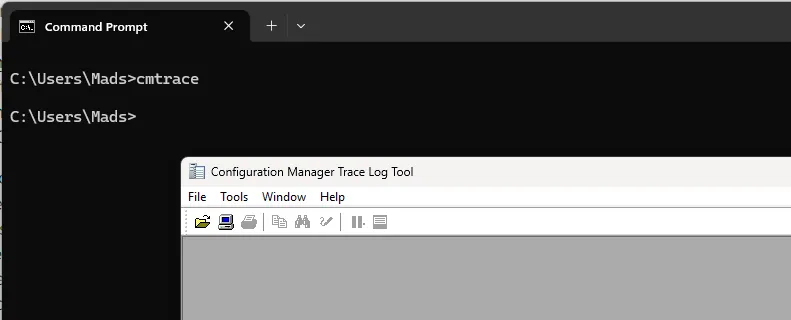
💡 Tip: Kopiér CMTrace.exe til C:\Windows\System32, så du nemt kan kalde den fra kommandolinjen.
OneTrace
Installationsfilen ligger i Support Center-pakken:
..\cd.retail.LN\SMSSETUP\TOOLS\SupportCenter\SupportCenterInstaller.msi
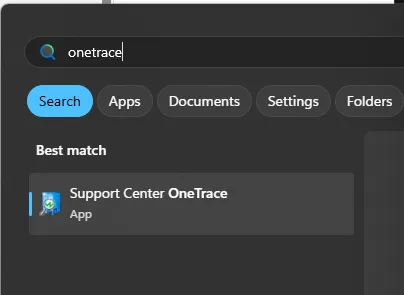
Når den er installeret, kan du starte OneTrace direkte fra Start-menuen.
Til sidst
Gennem årene har jeg sparet utallige timer takket være enkle, driftsikre værktøjer som disse. De kræver næsten ingen indsats at få ind i arbejdsgangen – og alligevel gør de en stor forskel.
Bruger du stadig Notepad++ eller ligefrem almindelig Notepad til at læse logfiler?
Så er det måske tid til en opgradering. 😊
Skriv gerne til mig, hvis du bruger andre værktøjer – jeg er altid nysgerrig efter at høre om nye.